How to Build and Deploy a Web App from Claude with the Aurora Connector
— Aurora Team
Aurora is now listed in the Claude Connectors Directory. When you connect it, Claude can create a project, write the code, run it on a live preview, and deploy it to a real URL. You do all of it from a Claude chat.
This guide shows how to connect Aurora to Claude and build your first app. It takes about five minutes.
Before you start
You need a Claude account. This guide uses claude.ai.
You need an Aurora account. If you do not have one, you can create it when you connect.
Connect Aurora to Claude
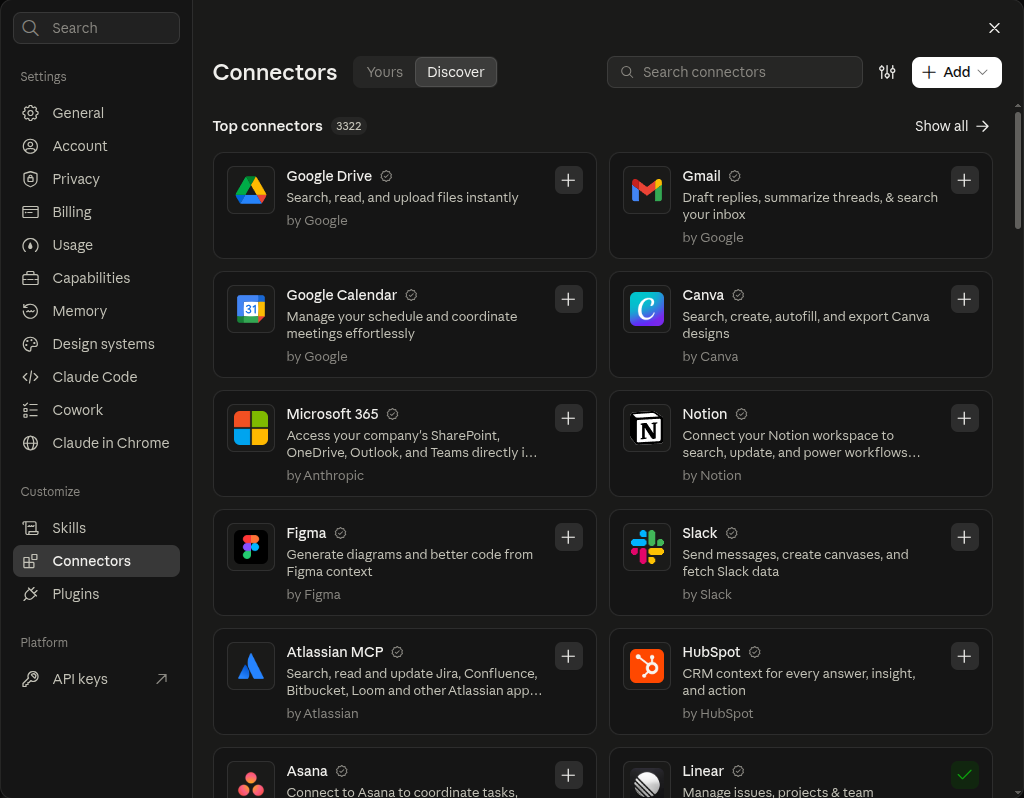
Open the directory. In Claude, click Customize, then Connectors. Select the Discover tab.
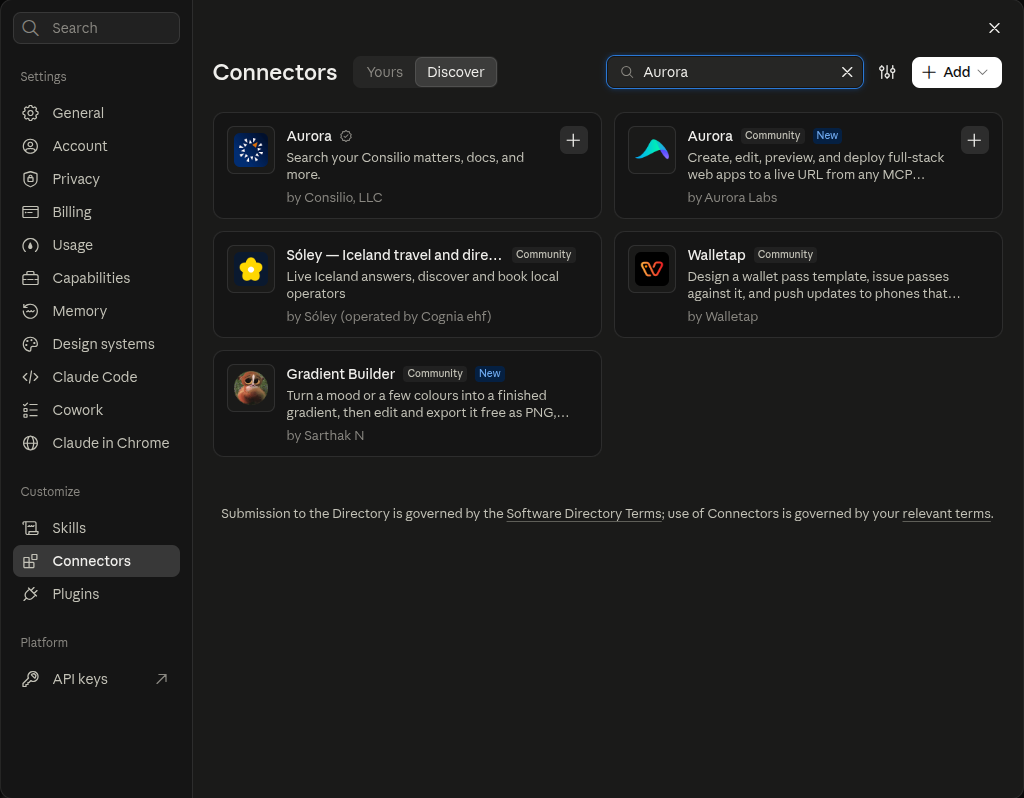
Find Aurora. Type "Aurora" in the search box. Two connectors have the name Aurora, so check the publisher. Select the Aurora connector by Aurora Labs.
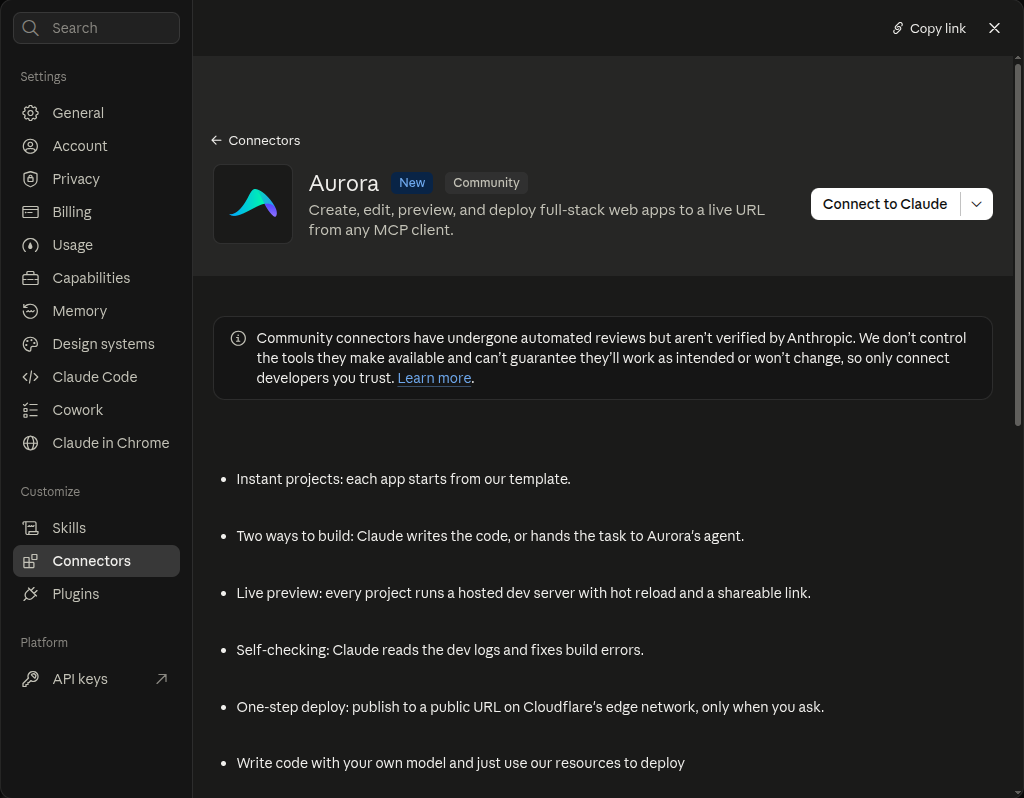
Connect. Click Connect to Claude.
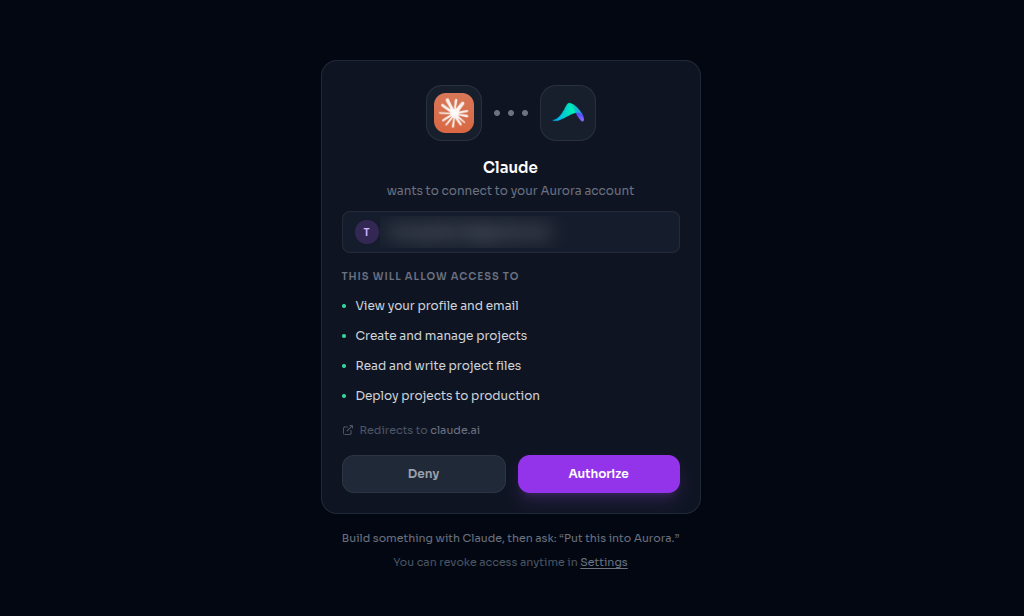
Authorize. Aurora opens in your browser. Sign in or create an account, then click Authorize.
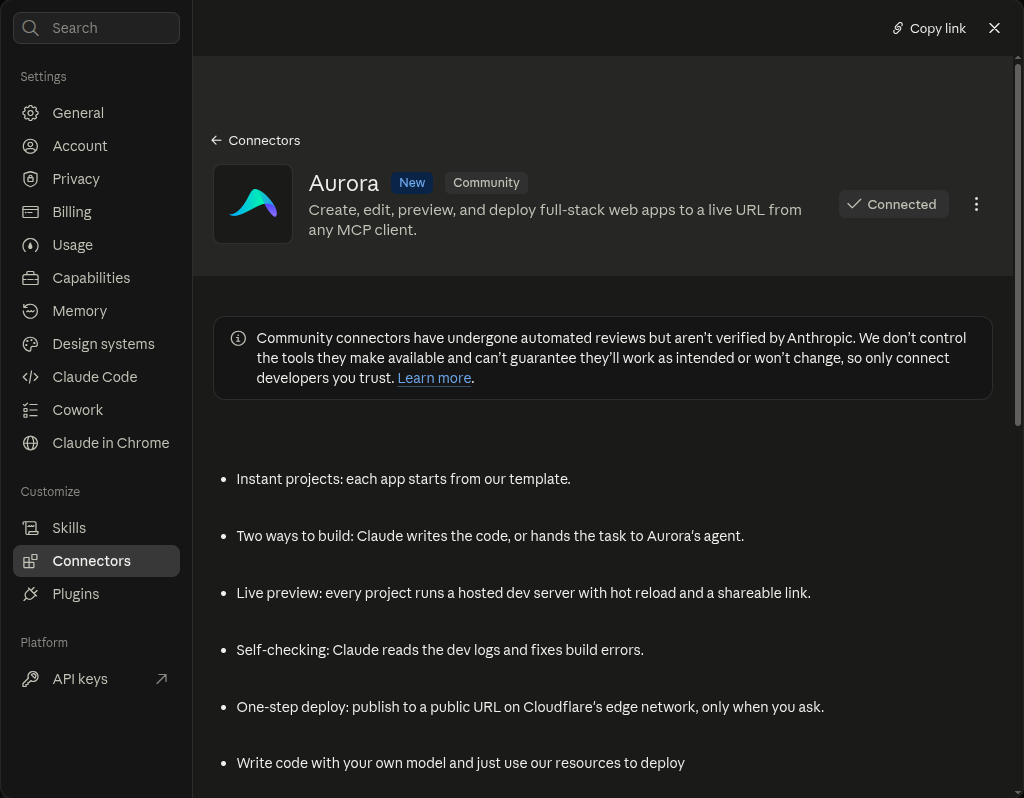
Check the connection. Claude shows Connected on the Aurora page.
Build your first app
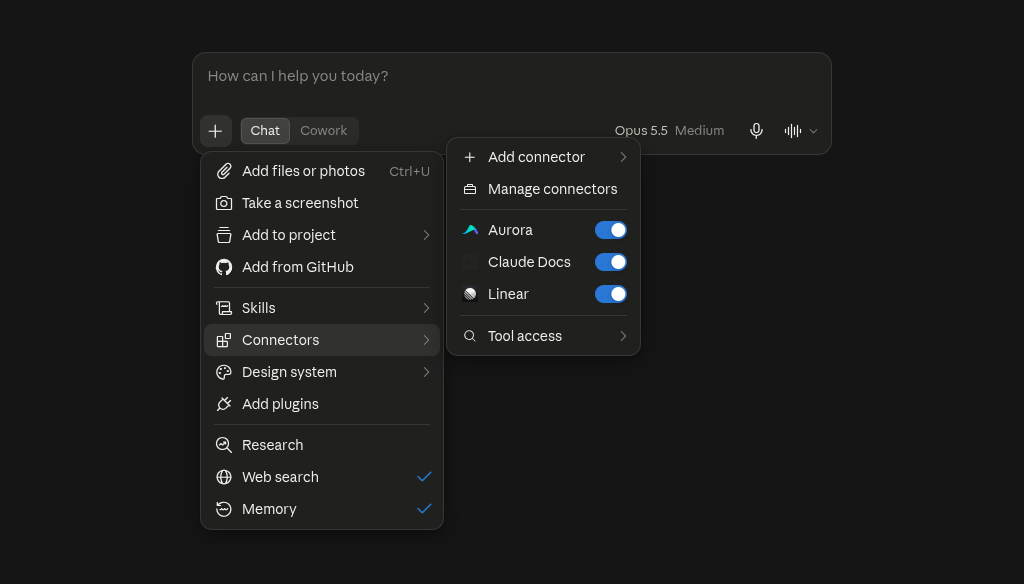
Start a new chat. Click +, then Connectors. Make sure that Aurora is on.
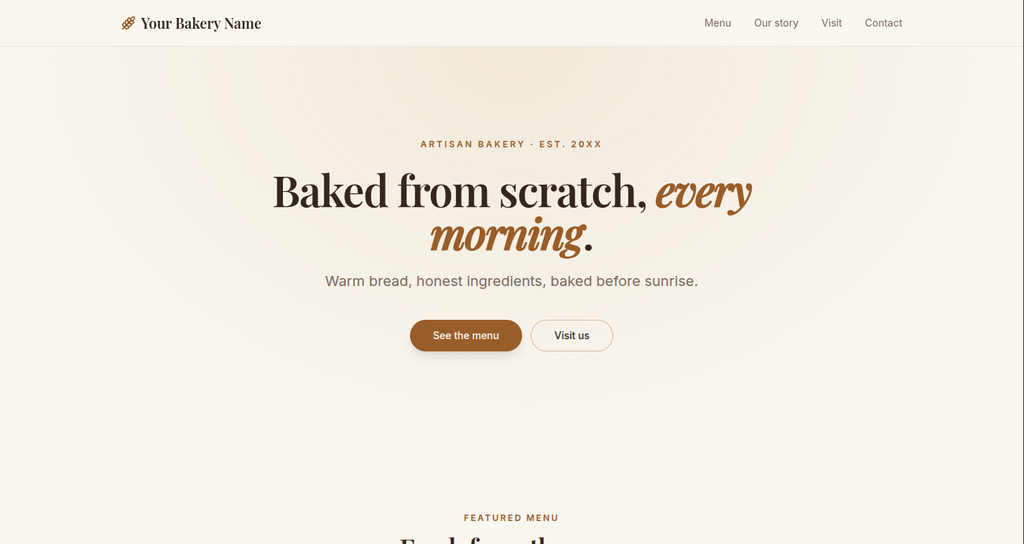
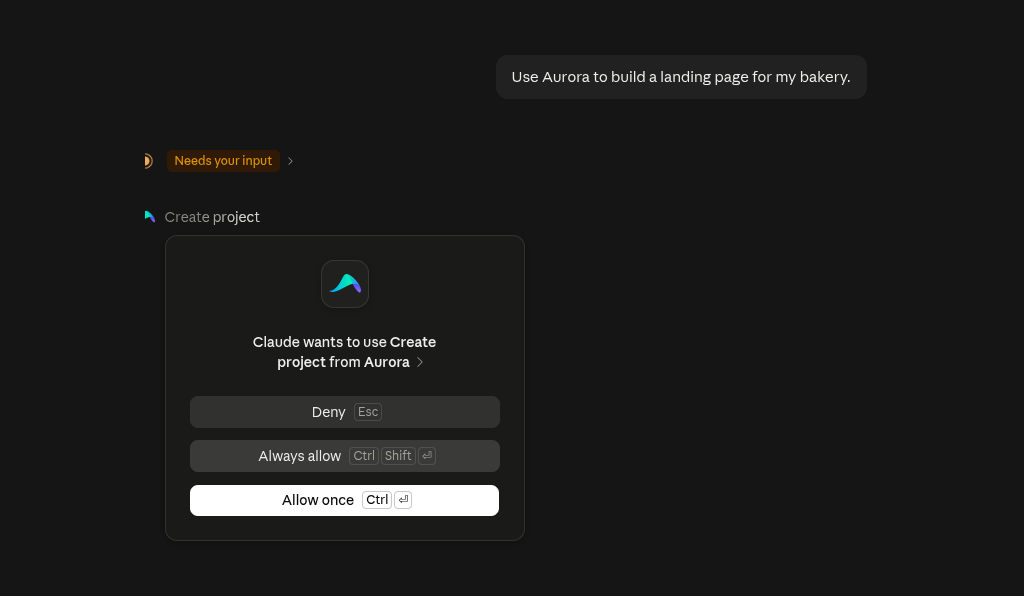
Ask for an app. Name Aurora in your request. For example: "Use Aurora to build a landing page for my bakery."

Allow the Aurora tools. Claude asks before it uses an Aurora tool for the first time. Click Always allow, so that Claude can finish the build without a stop at each step.
Open the preview. Claude replies with a link to a live preview of your app.
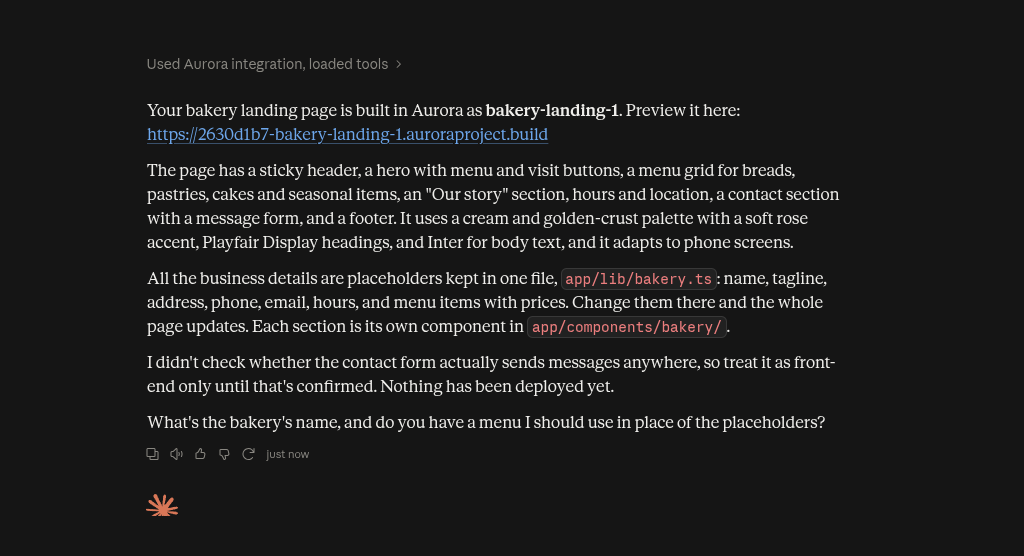
Click the link to open your app. The preview is private. Only you and the people you invite to the project can open it, after they sign in to Aurora. If the project was paused, Aurora starts it again. This takes a few seconds.
Keep building and deploy
Ask for changes in the same chat, for example: "Add a menu section with prices." Claude changes the code, and the preview updates. Each change is saved as a commit in the project's GitHub repository.
Claude can write the code itself, or it can give the task to Aurora's own agent. When Claude writes the code, the edits do not use your Aurora credits.
When you like the result, ask Claude to deploy it. Aurora publishes the app to a public URL. The free plan includes 2 projects and 1 live deploy.
Use Aurora from Claude Code and other tools
Aurora works in any tool that supports MCP. All tools use this server URL:
https://mcp.aurora.build/mcpIn Claude Code, run this command:
claude mcp add aurora --transport http https://mcp.aurora.build/mcpThen run /mcp, select aurora, and authorize in your browser. For Cursor, VS Code, LM Studio, and Windsurf, see the MCP setup guide.